
Only after the completion of the Gateway setup can we proceed to the current step.This guide explains how to configure a new CTI number for a customer using the Numbers tab in the Dialforce Setup page.
Step 1: Open the Numbers Tab #
- Go to the Dialforce Setup Page.
- Click on the Numbers Tab icon.Then we will open the below page
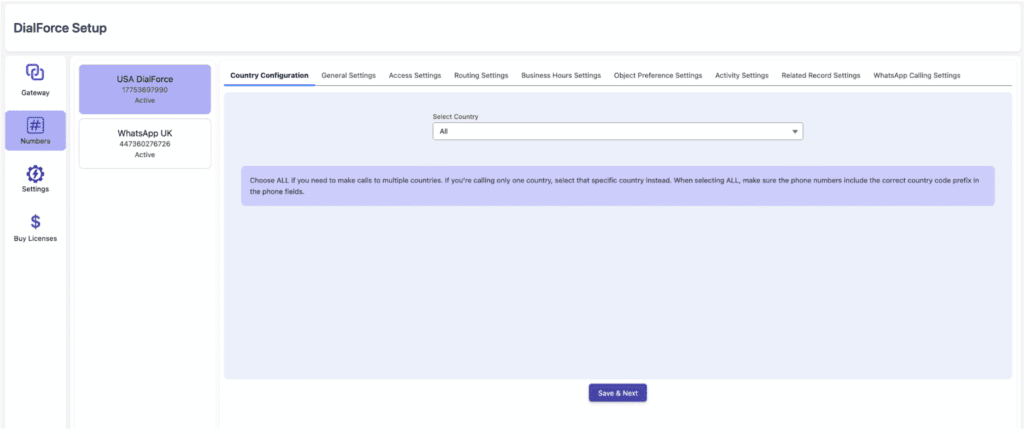
- The page will open with 9 configuration tabs:
- Country Configuration
- General Settings
- Access Settings
- Routing Settings
- Business Hours Settings
- Object Preference Settings
- Activity Settings
- Related Record Settings
- WhatsApp Calling Settings
- Country Configuration
Step 2: Country Configuration #
- Click on the Country Configuration tab.Then we will open the below page
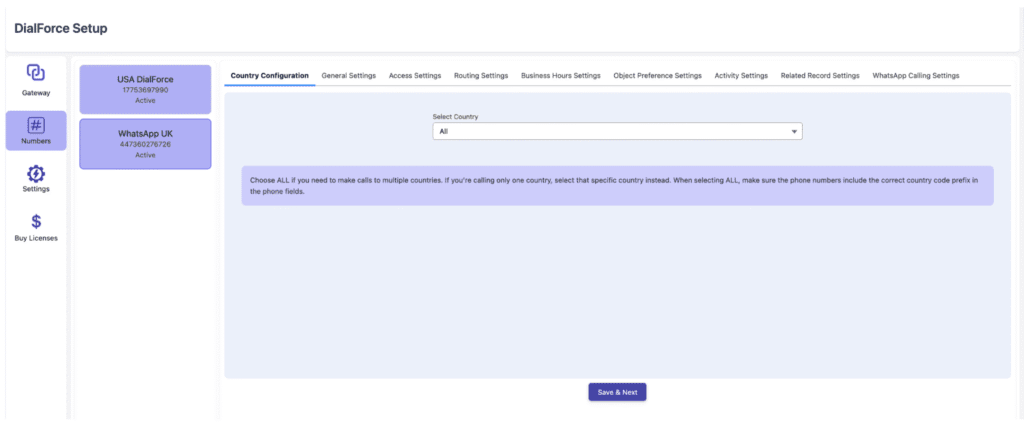
- You’ll see a dropdown labeled Select Country . As shown below
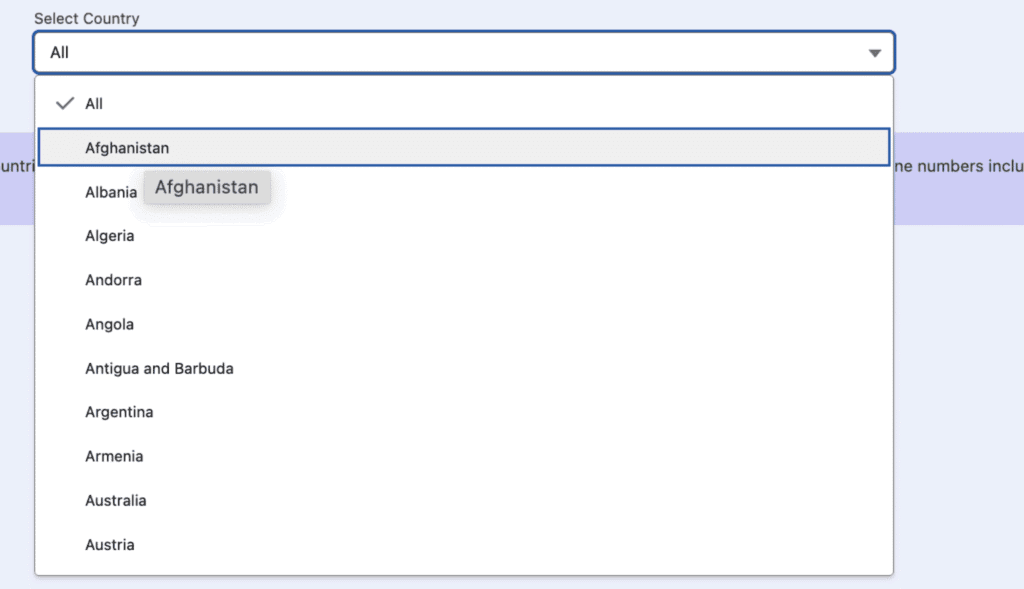
Options:
- ALL – Choose this if calls need to be made to multiple countries.
- ⚠️ Ensure all phone numbers have the correct country code prefix.
- ⚠️ Ensure all phone numbers have the correct country code prefix.
- Single Country – Choose the specific country if calls are limited to that region.
Step 3: General Settings #
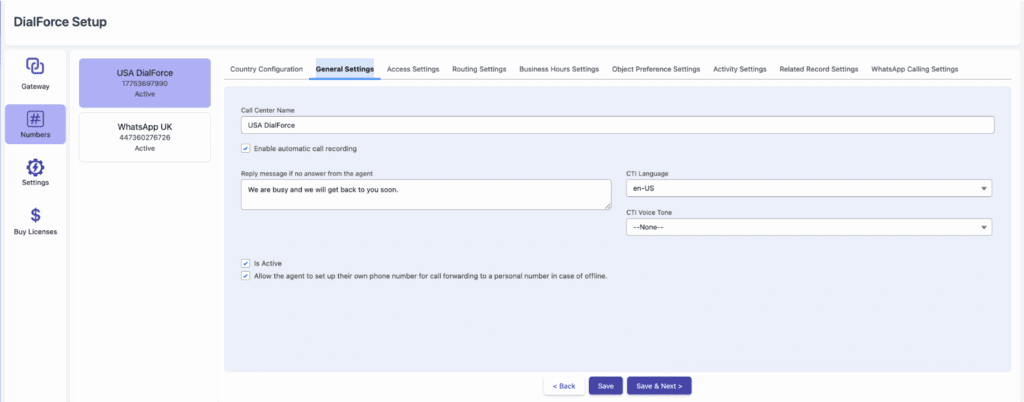
Click the General Settings tab and configure the following:
1. Call Center Name
- Enter a label or name for the CTI number.
2. Enable Automatic Call Recording
- Enable this option to record all calls automatically.
3. Reply Message if No Answer from Agent
- Enter a message that the AI should send when the agent doesn’t answer a customer call.
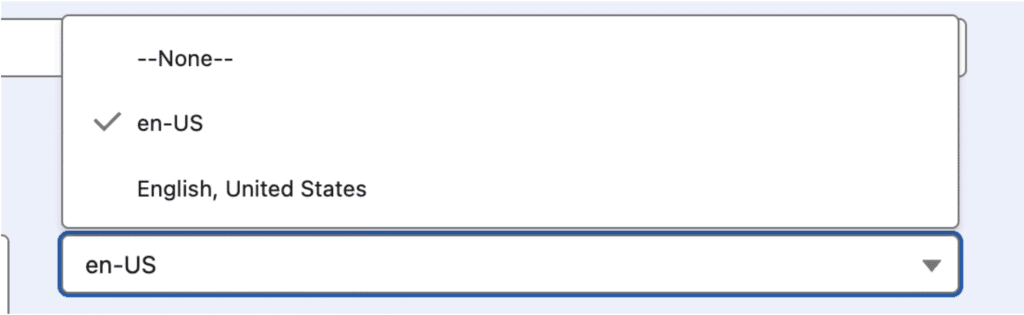
4. CTI Language
- Choose the AI response language for the “no answer” message.
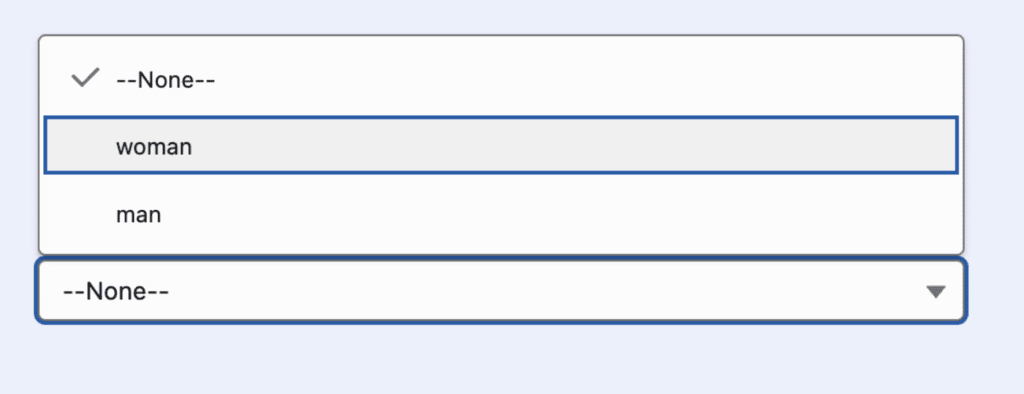
5. CTI Voice Tone
- Select the voice tone for AI responses.
6. Is Active
- Enable this checkbox to activate or deactivate the CTI number.
7. Allow Agent to Set Personal Forwarding Number
- Enable this to allow agents to forward calls to their personal numbers when offline or unavailable.
Step 4: Access Settings #
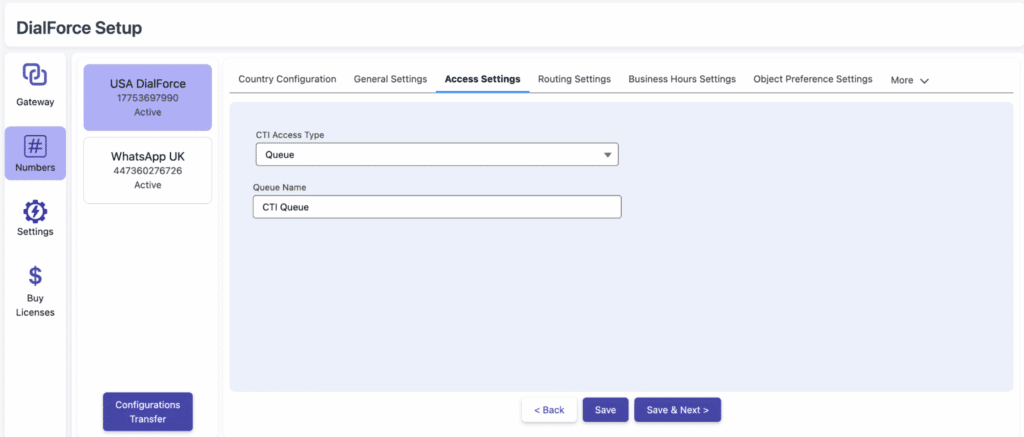
- Click the Access Settings tab.
- This controls who can use the CTI number.
Options:
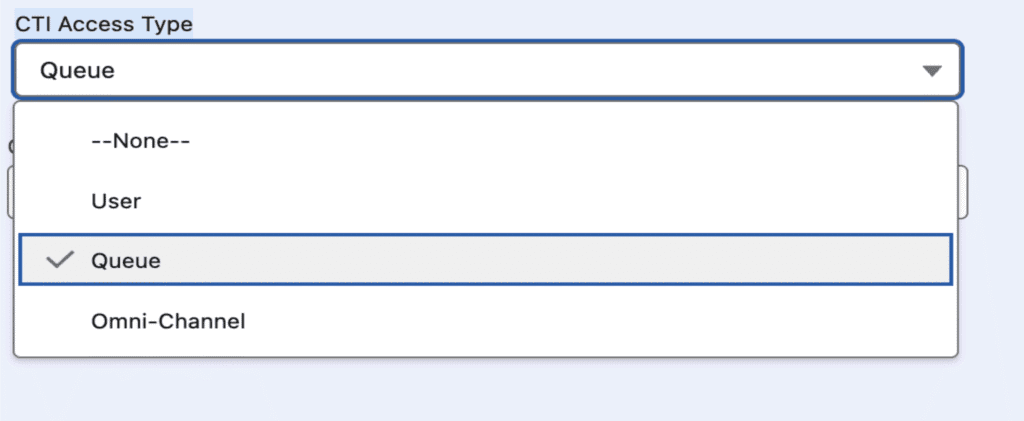
1. CTI Access Type
- User Type: Assigns the number to a single agent.
- Queue Type: Allows multiple agents (team/queue) to use it.
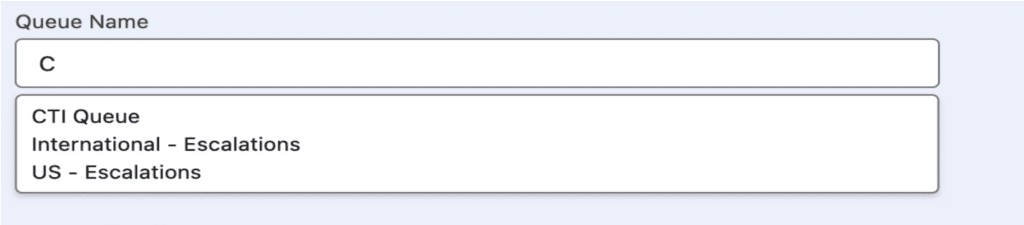
2. Search Box
- Use the search bar to find and assign users or queues.
Step 5: Routing Settings #
Visible only when Access Type = Queue or Multi-user.
- Determines how incoming calls are routed among multiple agents.
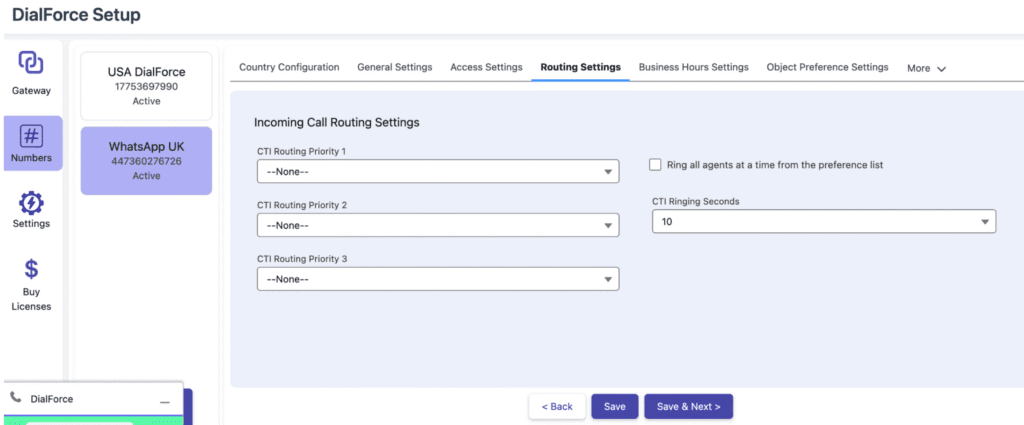
It has four options of same type that is as follows
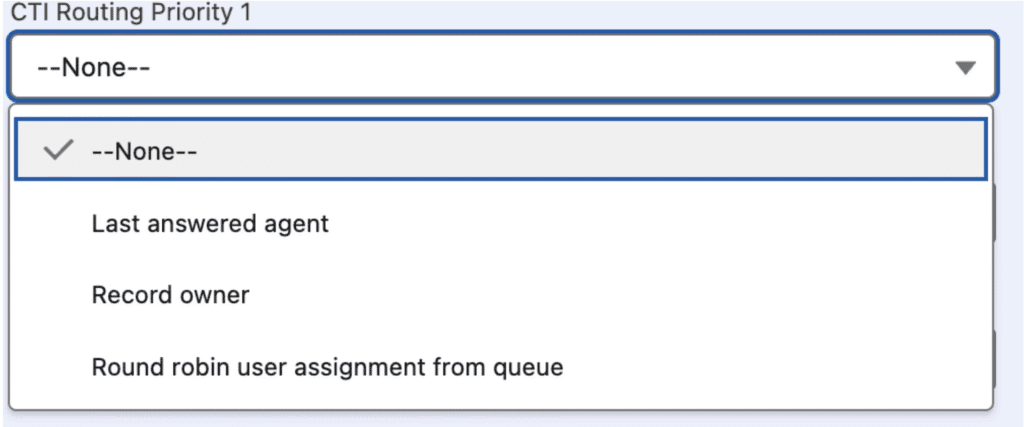
Options: #
- Last Answered Agent
- Routes the next call to the agent who last answered the number.
- Routes the next call to the agent who last answered the number.
- Record Owner
- Routes the call to the agent who owns the customer record (if matched by phone number).
- Routes the call to the agent who owns the customer record (if matched by phone number).
- Round Robin Assignment
- Calls rotate through agents in the queue in sequence.
- Calls rotate through agents in the queue in sequence.
Ring All Agents at a Time
- Enable this to ring all agents in the queue simultaneously
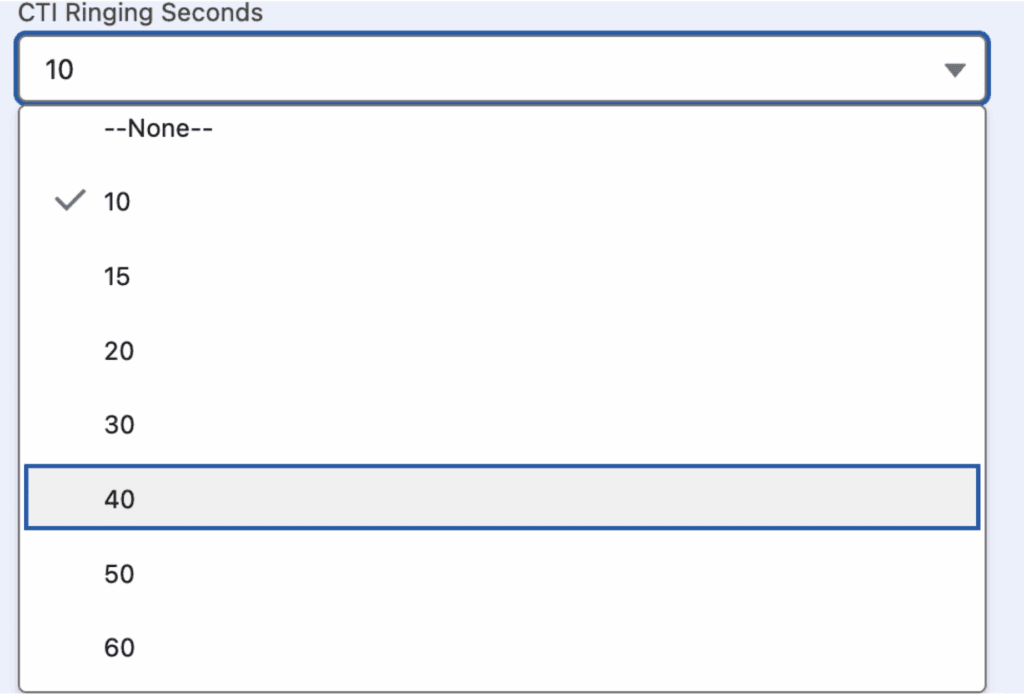
CTI Ringing Seconds
- Define how long the phone should ring before moving to the next agent (in seconds).
Step 6: Business Hours Settings #
- Click the Business Hours Settings tab.
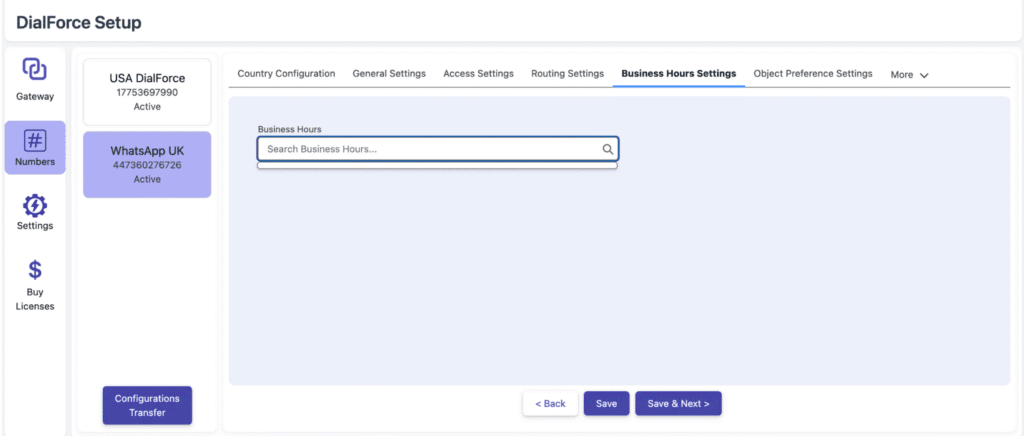
Steps: #
1. Create business hours in Company Settings → Business Hours.
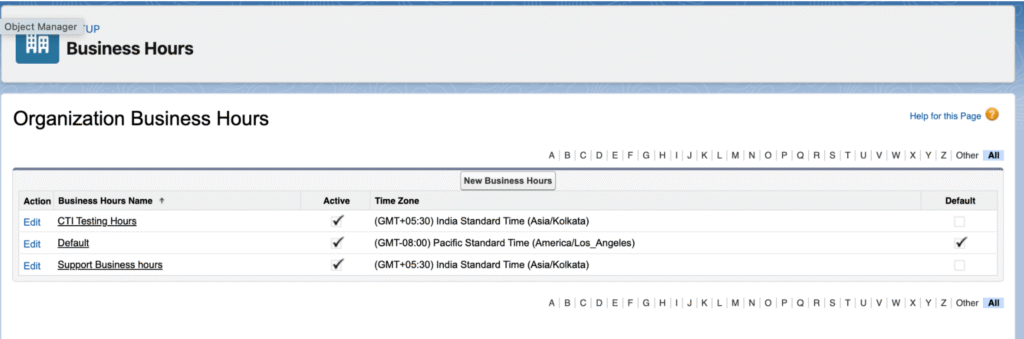
2. These hours will be searchable here.
3. Select the desired business hour schedule.
Behavior: #
- Incoming calls will only be received within the defined business hours.
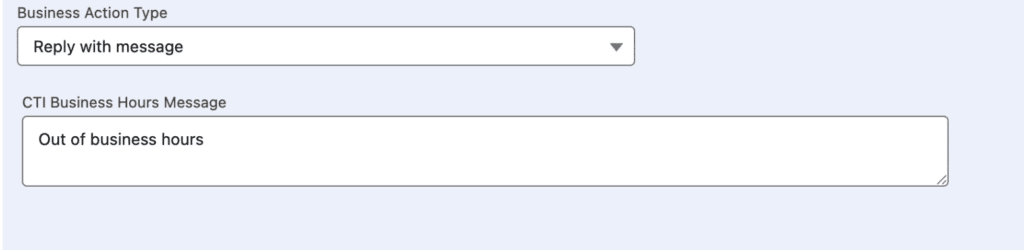
Business Action Type: #
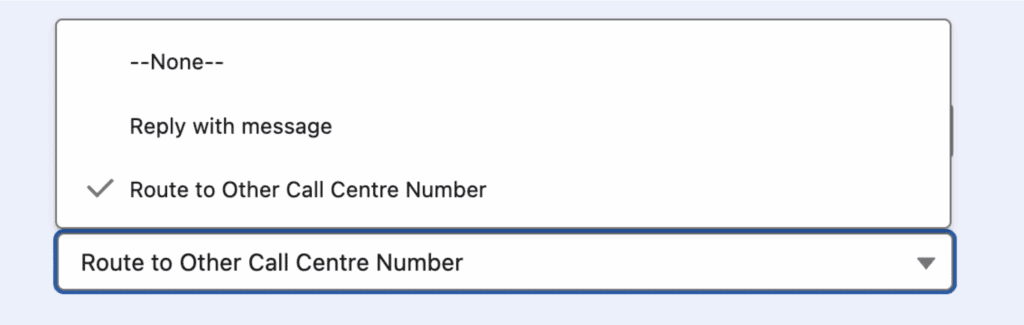
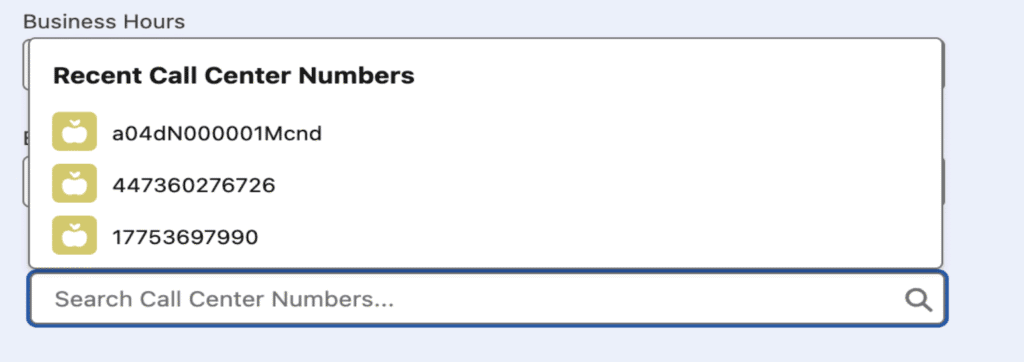
- Route to Other Call Center Numbers:
Redirects calls to another CTI number if received after hours.
- Reply with Message:
Sends an automated message (defined in the “CTI Business Hours Message” box) when calls come after hours.
Step 7: Object Preference Settings #
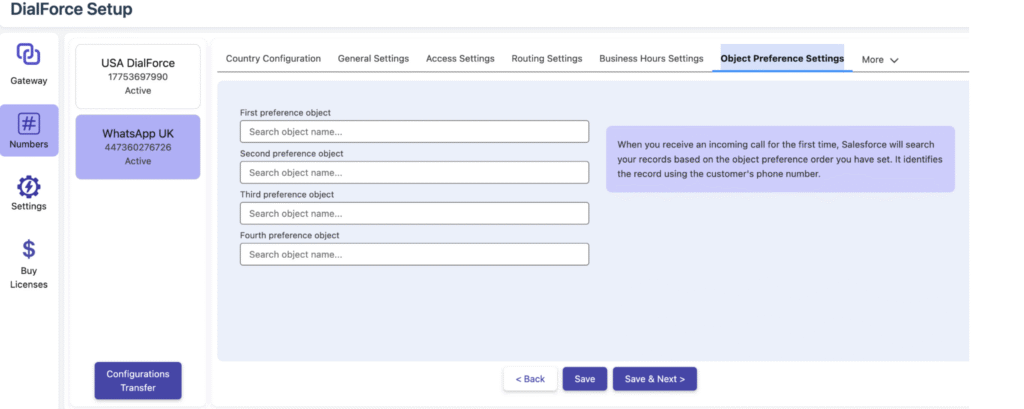
- Click the Object Preference Settings tab.
Steps: #
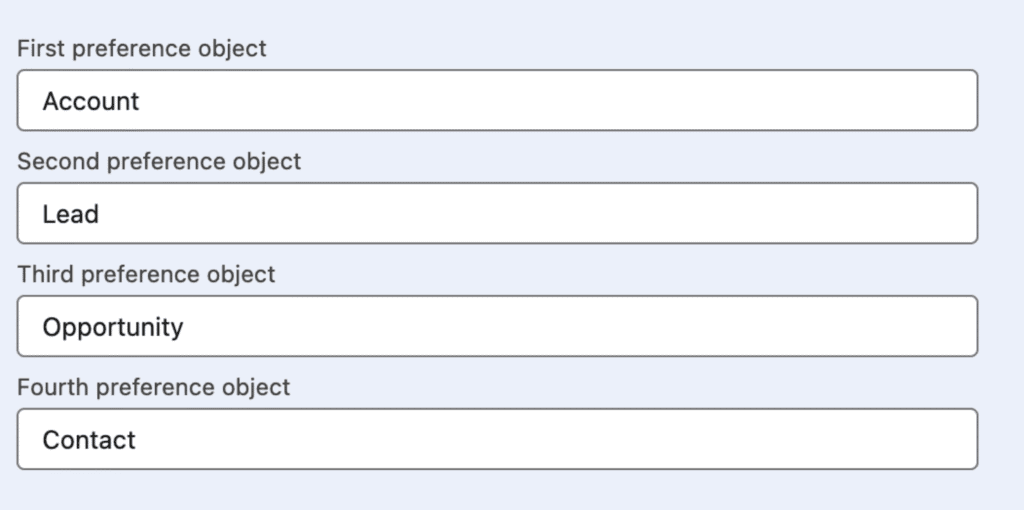
- You’ll see four input fields for selecting objects.
- When a call comes in, the system will search for related records in the selected objects (based on the caller’s phone number).
- Use the search box to find and add objects (e.g., Lead, Contact, Case).
- Add up to four objects in order of priority.
Step 8: Activity Settings #
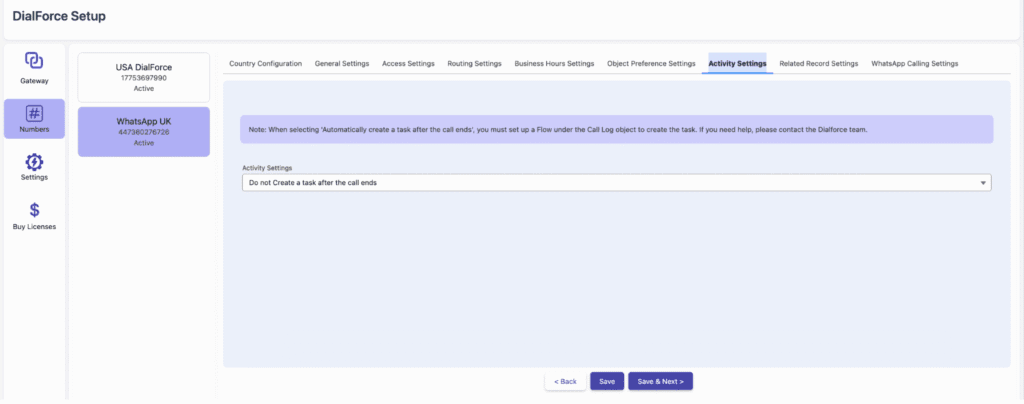
- Click the Activity Settings tab.
Options:

- Automatically Create a Task After Call Ends:
- Creates a task record with call details automatically.
- Creates a task record with call details automatically.
- Do Not Create a Task After Call Ends:
- No task will be created.
- No task will be created.
- Open Pop-Up Window After Call Ends:
- Opens a window allowing the agent to create a task manually after the call.
- Opens a window allowing the agent to create a task manually after the call.
Step 9: Related Record Settings #
- Click the Related Record Settings tab.
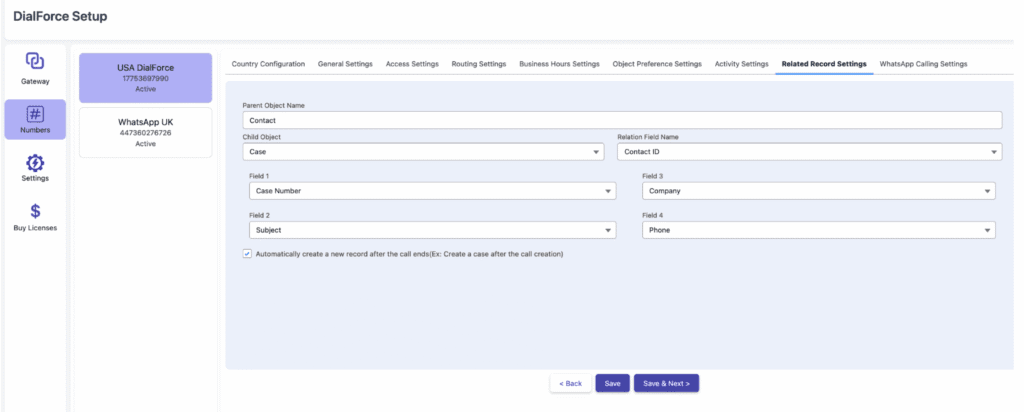
Purpose: #
- Displays records related to the customer’s record (e.g., tasks, cases).
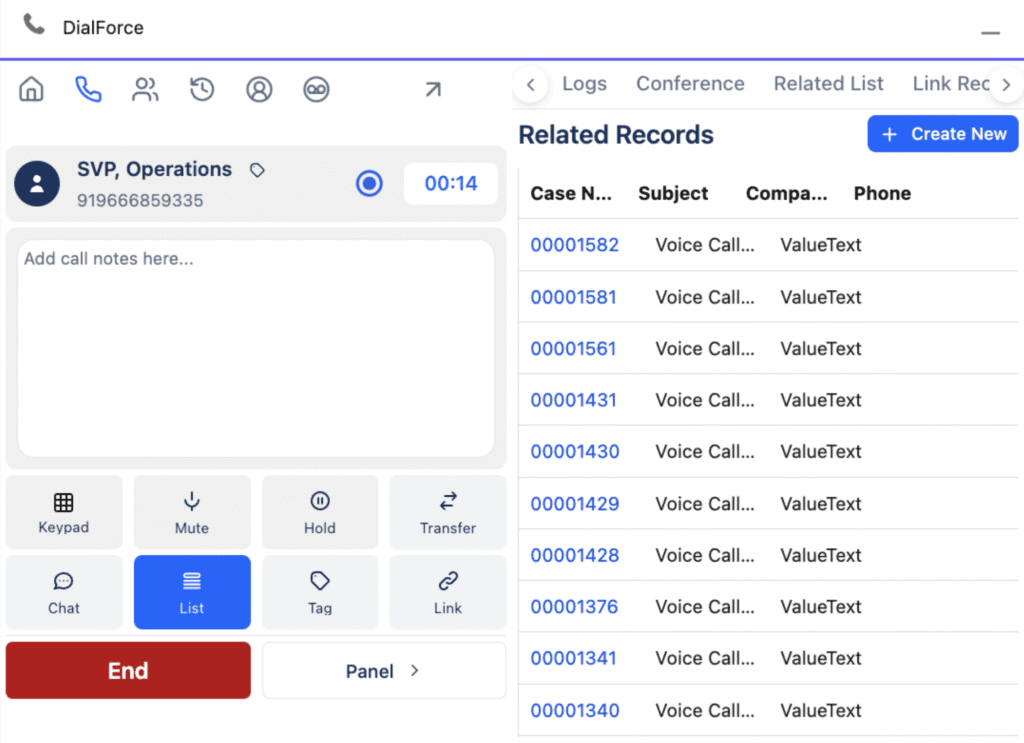
Option: #
- Automatically Create a New Record After Call Ends
- Enable this to automatically create a child record (e.g., a Case) after the call ends.
Step 10: WhatsApp Calling Settings #
- Click the WhatsApp Calling Settings tab.
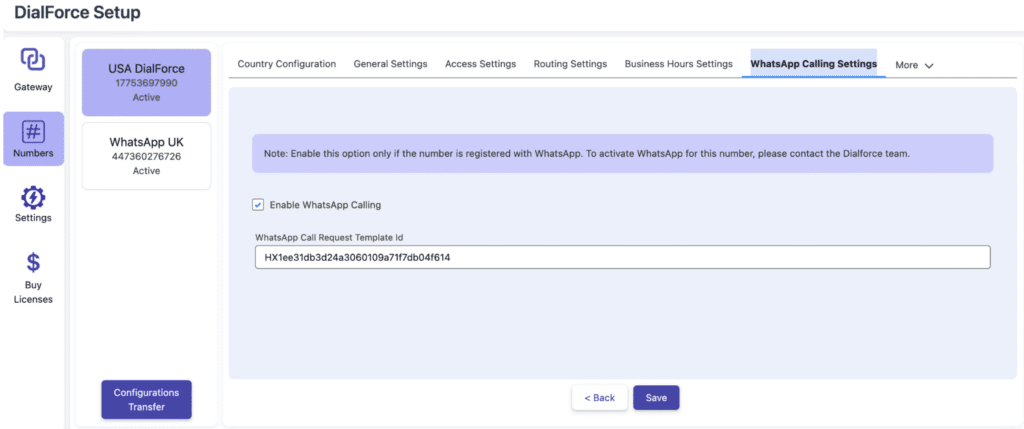
Steps: #
- Enable WhatsApp Calling to activate this feature.
- Enter the WhatsApp Call Request Template ID.
- This is mandatory for WhatsApp calling to work.
- Without this ID, a technical error will occur.
- This is mandatory for WhatsApp calling to work.


