DialForce Smart Dialer is your all-in-one Salesforce-native calling workspace, helping you manage calls, track performance, and stay connected. Here is a quick overview of each section inside DialForce.
Home Section #
Get a snapshot of your overall call performance in one view.
See Total Calls, Answered, Missed, Transferred, and Conference Calls specific to your activity.
Key features:
- Status Filter: Set your availability (Available, Busy, Offline).
- Time Filter: Filter insights by custom time ranges.
- View Complete Dashboard: Open a detailed analytics view with advanced filters.
Phone Section #
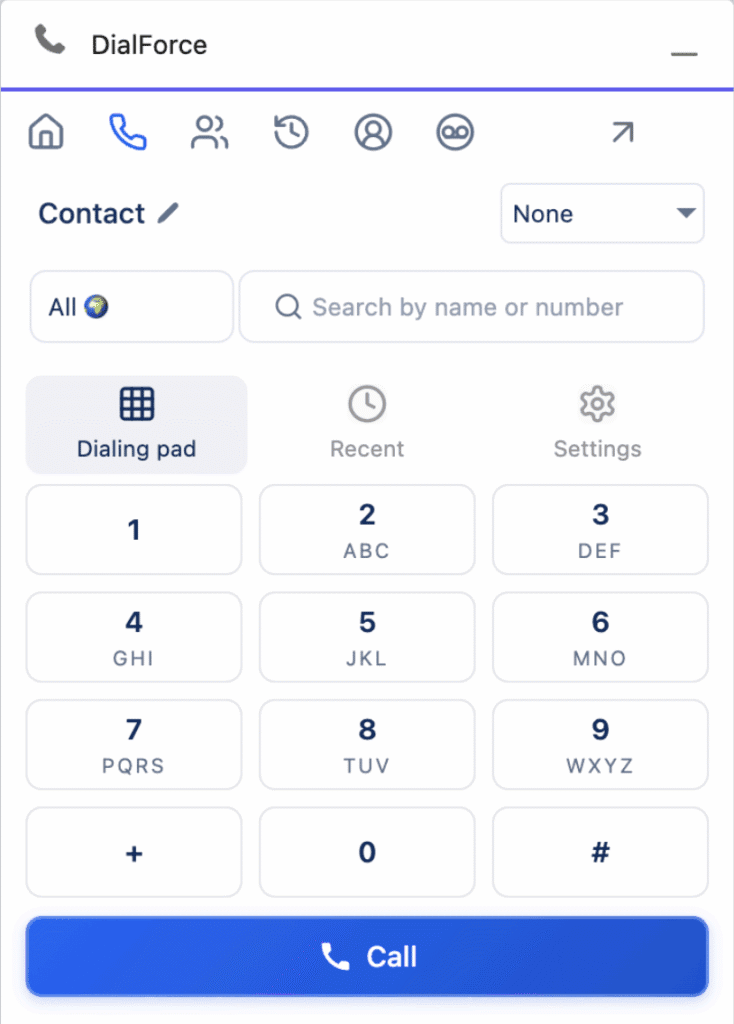
Your main dialer interface where calling happens.
Key features:
- Object Filter: Helps to search records or type a phone number to see matching Salesforce records.
- CTI Number Filter: Choose your assigned business number for outbound calls.
- Country Code Selector: Pick the correct country code before dialing.
- Dialpad: Enter numbers and start calls.
- Recent Calls: Quick access to your last 20 calls.
- Settings: Configure options like Auto Answer, Skip Business Hours for Call Forwarding, Offline Routing Number, post-call panel preference, and bell notification preference.
Tip: For the full list, see the detailed Settings documentation. [Click here]
Batch Calling Section #
Run outreach with batch calling.
Call multiple leads or contacts sequentially from a predefined list.
Manage list status (Active or Inactive) and monitor progress.
Learn more about batch calling [Click here].
Call Logs Section #
View all call logs, including inbound, outbound, missed, and transferred.
Use filters to search, sort, and analyze by user, date, or status.
Team Online Section #
View your team members’ active status and also you can make a call to your team.
Voicemails Section #
See all incoming voicemails with playback and filtering options so you can follow up quickly.


